

How do I change specifications for an ECS?
If the specifications of the ECS you purchased cannot meet your business requirements, you can change it at any time to upgrade the vCPU and memory.
On the ECS list page, click More > Change Configuration in the Operation column to change the specifications of the ECS.
Specifications changes include upgrades and downgrades:
For pay-as-you-go ECSs: Both upgrades and downgrades take effect immediately, and they are billed on demand according to the fees of the changed specifications.
For subscription-based ECSs:
Upgrade: The price of the new configuration is higher than that of the old configuration, and you need to pay the difference between the old and new configurations.
Downgrade: The price of the new configuration is lower than the price of the old configuration. eSurfing Cloud will refund the difference between the old and new configurations to you.
Can an ECS be migrated to another account?
After a cloud server is created, the region to which the cloud server belongs is fixed, so the cloud server cannot be migrated to another account.
However, you can migrate cloud servers across account by migrating images. For detailed operations, see Share a Specified Image.
Can a deleted ECS be activated again?
No. A cloud server that has been deleted cannot be activated again. Therefore, please make sure that the data on the cloud server has been backed up or migrated before performing the deletion operation. After you have deleted the cloud server, the data cannot be retrieved. Please proceed with caution.
For details about how to backup and migrate a cloud server, see Back up a Cloud Server and Migrate a Cloud Server.
What should I do if a Windows cloud server runs slowly?
If your cloud server runs slowly or is disconnected suddenly, it may be caused by the high bandwidth or CPU usage of the cloud server. If you have created an alarm task using Cloud Eye, the system automatically sends you an alarm notification when the bandwidth or CPU usage reaches the threshold specified in the rule.
If the bandwidth traffic of a Windows cloud server is too high or the CPU usage is high, perform the following steps to troubleshoot:
Fault locating: Identify the processes leading to high bandwidth or CPU usage.
Windows offer multiple tools for fault locating, including Task Manager, Performance Monitor, Resource Monitor, Process Explorer, Xperf (Windows server 2008 and later), and full memory dump analysis.
Troubleshooting: Check whether the processes are normal and handle the issue accordingly.
− For normal processes: Optimize the processes or change the cloud server configuration.
− For malicious processes: We suggest that you manually shut down the processes, or you can use a third-party tool to shut them down.
Fault locating procedure:
Use VNC to log in to the cloud server on the management console.
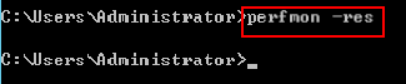
1. Open the Run window and enter perfmon -res.
2. In Resource Monitor, click CPU or Network to view the CPU usage or bandwidth usage.
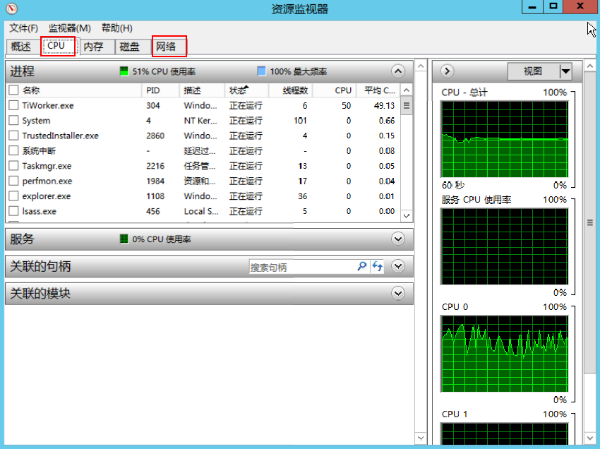
3. View the IDs and names of the processes with high CPU or bandwidth usage.
4. On the VNC login page of the console, click Ctrl+Alt+Del to open Windows Task Manager. Or, open the Run window and enter taskmgr to open Windows Task Manager.
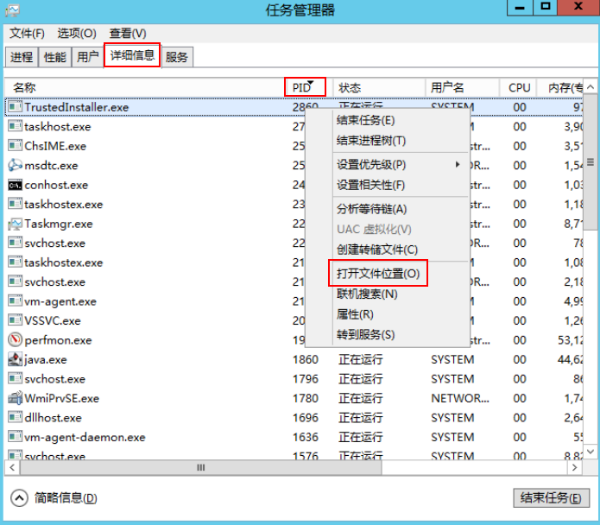
5. The following steps describe how to open the PID in Task Manager, find the specific location of a process, and check whether the process is malicious.
a. Select the Details tab.
b. Click PID to sort the processes.
c. Right-click the process with high CPU or bandwidth usage and choose Open File Location from the shortcut menu.
d. Check whether the process is malicious.
Troubleshooting
Before you take actions to handle the issue, determine whether the process leading to high CPU or bandwidth usage is normal or malicious. The processes in different states need to be treated differently.
1. If your cloud server runs Windows 2008/Windows 2012, please check the memory size. The recommended memory is 2 GB or higher.
2. Check whether Windows Update is running on the backend.
3. Check if the antivirus software is scanning files and programs on the backend.
4. Check whether the applications running on the cloud server have high network and CPU requirements. If so, we suggest that you change the specifications of the cloud server or modify the bandwidth.
5. If the cloud server configuration is already relatively high, you can consider deploying databases and applications separately on the cloud server.
Suggestions for troubleshooting malicious processes
If the high CPU or bandwidth usage is caused by viruses or Trojan horses, you need to manually stop the process. The recommended troubleshooting procedure is as follows:
1. Use commercial antivirus software or install Microsoft Safety Scanner to scan for viruses in Safe Mode.
2. Install the latest patches for Windows.
3. Run MSconfig to disable all drivers that are not delivered with Microsoft and check whether the fault occurs again.
What should I do if a Linux cloud server runs slowly?
The CPU or memory usage is too high, causing slow service response and server login stalling.
Tools for fault locating
Top: A commonly used monitoring tool on Linux to obtain the CPU or memory usage at the process level in real time. The output information of the top command is shown as an example in the following figure.
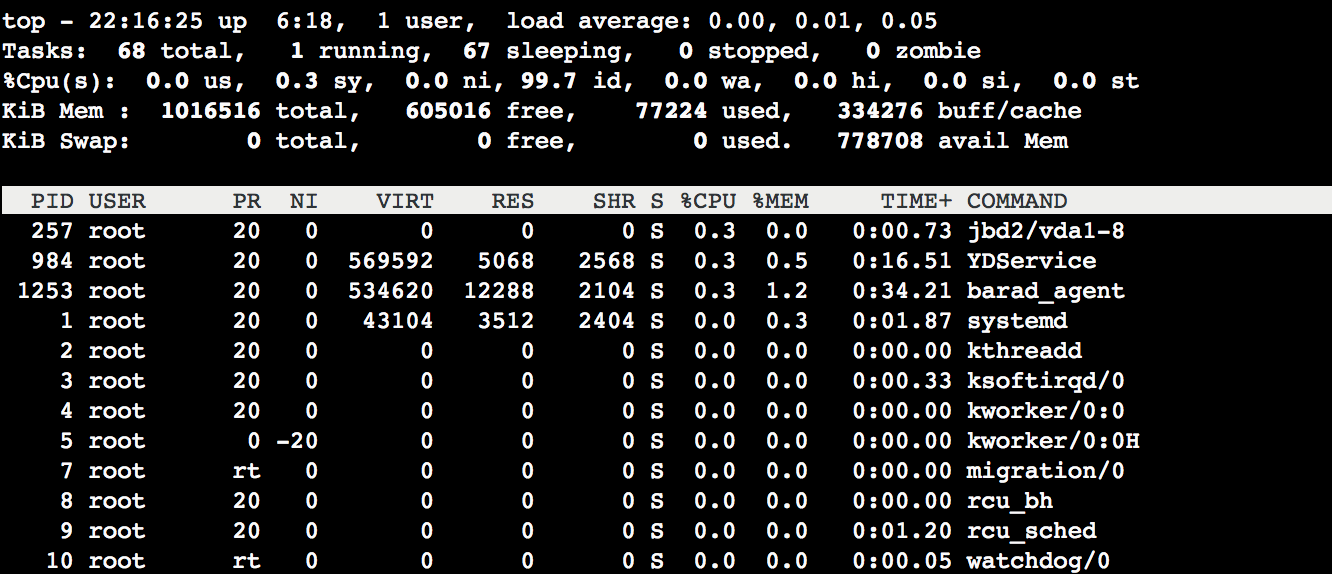
The output information of the top command is divided into two main parts. The upper part shows the overall usage of CPU and memory resources:
First line: The current system time, the number of logged-in users, and the system load.
Second line: Total number of system processes, the number of running processes, the number of sleeping processes, the number of stopped processes, and the number of zombie processes.
Third line: The current CPU usage.
Fourth line: The current memory usage.
Fifth line: The current usage of swap space.
The lower part shows the resource usage by process:
PID: The process ID.
USER: The process owner.
PR: Process priority.
NI: The NICE value. The lower the NICE value, the higher the priority.
VIRT: The size of virtual memory used, in KB.
RES: The size of memory used, in KB.
SHR: The size of the shared memory used, in KB.
S: The process state.
%CPU: The percentage of CPU used by the process during the update interval.
%MEM: The percentage of memory used by the process during the update interval.
TIME+: The CPU time used by the process, accurate to 0.01s.
COMMAND: The name of the process.
Possible Causes
High CPU or memory usage may be caused by hardware, system processes, service processes, Trojan horses or viruses. You can use Cloud Eye to create an alarm on the CPU or memory usage threshold so that you will be alarm in a timely manner when the CPU or memory usage exceeds the threshold.
Troubleshooting Procedure
1. Log in to the cloud server.
Based on your actual requirements, log in to the ECS using different methods: Log in to the ECS by using third-party software. Note: When the Linux cloud server is under high CPU load, it may fail to be logged in. In this case, see Log in to Your Linux ECS instance Using VNC to log in to the Linux cloud server using VNC.
2. Check the resource usage by the process.
Run the following command to view the system load and identify the processes that are consuming the most resources as indicated in the %CPU and %MEM columns:
top
3. Check and analyze the resource-consuming processes.
Based on the processes in Task Manager, analyze and troubleshoot the issue to take corresponding solutions.
If a service process consumes a large amount of CPU or memory resources, we suggest that you analyze whether the service process can be optimized. If so, optimize it, or Upgrade the Server Configuration.
If a malicious process consumes a large amount of CPU or memory resources, the instance may be infected with viruses. In this case, you can terminate the process or use security software to kill it, and if necessary, back up data and reinstall the operating system.
4. Terminate the process that consumes resources.
a) According to the resource-consuming processes analyzed, record the PID of the process that needs to be terminated.
b) Enter k.
c) Enter the PID of the process to be terminated and press Enter, as shown in the figure below: In this example, a process with a PID 23 is terminated.
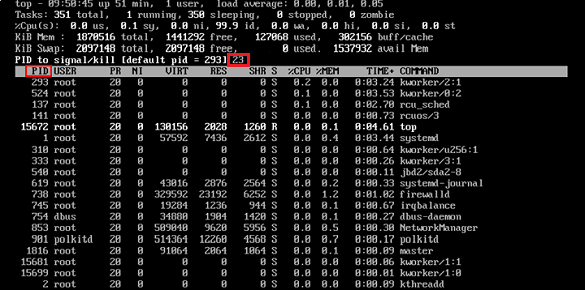
Note:If kill PID 23 with signal [15]: appears after pressing Enter, continue to press Enter to keep the default setting.
5. After the operation is successful, a message will appear on the interface with Send pid 23 signal [15/sigterm]. Press Enter to confirm.
Can I install or upgrade the OS by myself?
ECSs run the OSs provided by the cloud platform. You can update or patch the OSs.
If you need to change the OS, you need to first shut down the ECS on the console, and then reinstall the OS with one click. For example, you can use the OS switching feature to upgrade the OS from CentOS 7.6 to CentOS 7.8.
Can I change the OS for an ECS?
Yes. You can first shut down the ECS on the console, and then change the OS through one click reinstallation.
For detailed operations and limitations, see Elastic Cloud Server > User Guide > ECS Instance > ECS Management >Reinstall the OS.
How long does it take to reinstall the OS?
Shut down the cloud server first. Then, click More > 一键重装 and select the OS to be installed. Enter the password and click OK. Generally, you need to wait for a few minutes for the OS to be reinstalled completely.
During the OS reinstallation, the task status of the cloud server is displayed as Rebuilding. After the rebuilding is completed, the cloud server is displayed as shut down. Select the cloud server and click the Start button to restart the cloud server for further use.
Do cloud servers support GUI?
Windows cloud servers are managed through a GUI but Linux ECSs are managed through the CLI.
You can configure a GUI if required.
Before installing a GUI on a ECS, ensure that the memory is greater than or equal to 2 GB. Otherwise, the GUI installation may fail or the ECS cannot be started after the installation.
Will my disk data be affected if I reinstall the OS, change the OS, or change the ECS specifications?
Impact on system disk data:
Reinstalling the OS (Linux) will clear the system disk data, including all the partitions of the system disk and the mounting point configuration in all other partitions. Please back up your data before reinstalling the OS;
Reinstalling the OS (Windows) will clear the system disk data, including will clear the system disk data, including all the partitions of the system disk, the mounting point configuration in all other partitions, and the registry information after the software is installed. Please back up your data before reinstalling the OS.
Changing specifications does not affect the system disk.
Impact on data disks:
Reinstalling the system (Windows) may cause the relevant software unavailable as it has a trial period. In this case, you need to reinstall the relevant software, but the data of the previous programs in data disks will be saved.
Changing specifications does not affect data disks.